 Installation & Licensing Center
HOW TO - Create a Cube & Apply Gravity in Ansys Mechanical
 Authored by Nick Heberle
October 25th, 2026
8314 views
0 likes
 KB1505073
Description
Build a simple cube model in Ansys Discovery, then add a fixed support and Earth gravity in Ansys Mechanical. Use it as a quick test that Mechanical can mesh and solve, for example when troubleshooting solver or license problems.
Solution
Create the Cube Geometry
- Open Workbench.
- Double-click Static Structural to add this analysis system to the "Project Schematic".
- Right-click the Geometry cell and select New Discovery Geometry.
- In Discovery, press Ctrl+Shift+B to create a new cube.
- Close Discovery.
Apply the Support and Gravity
- In Workbench, double-click the Model cell to start Mechanical.
- In the "Outline" pane on the left, select Static Structural.
- Rotate the cube until you see its bottom face, then click to select the bottom face. To rotate, press and hold the scroll wheel, or click Rotate in the toolbar above the model.
- Right-click the selected face and select Insert > Fixed Support.
- Rotate the cube until you see its top face, then click to select the top face.
- Right-click the selected face and select Insert > Standard Earth Gravity.
Solve and View the Result
- In the "Outline" pane on the left, select Solution.
- On the Home ribbon, click Solve.
- Select the Solution ribbon, then click Deformation > Total.
- In the "Outline" pane, right-click Total Deformation and select Retrieve This Result.
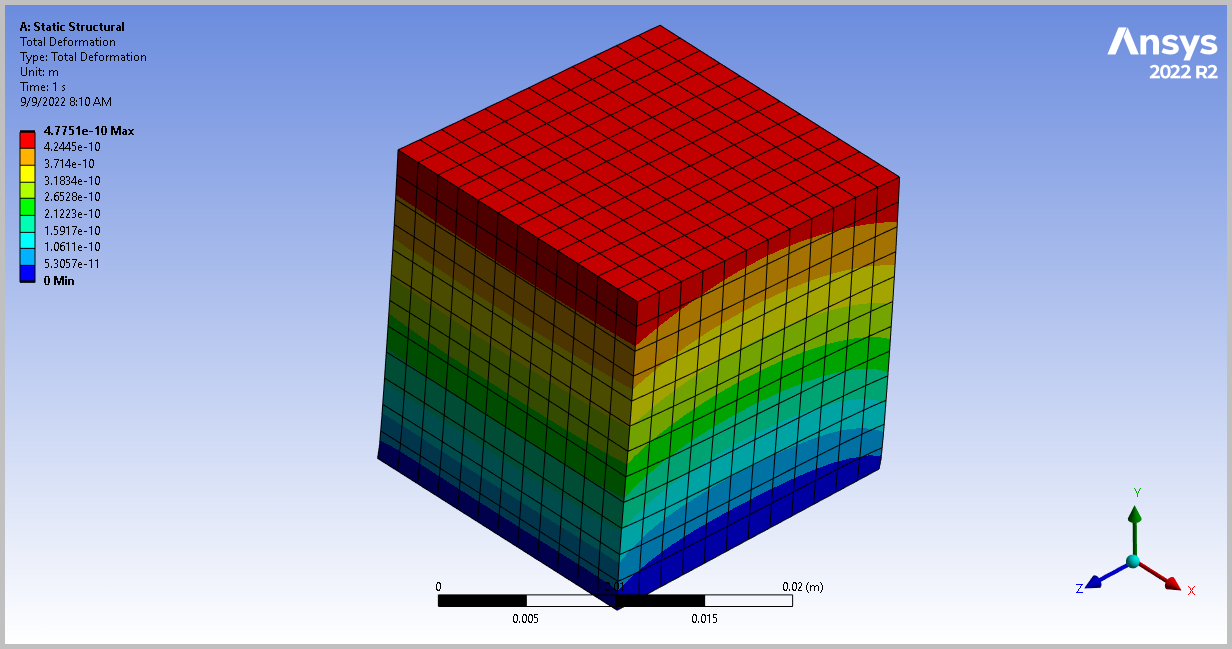
Verify It Worked
The solve completes without errors and a Total Deformation contour appears on the cube.

