 Installation & Licensing Center
HOW TO - Run Product & CAD Configuration Manager
 Authored by Caleb Scharf
November 2nd, 2026
16503 views
4 likes
 KB955764
Description
Run the Ansys Product & CAD Configuration tool when Ansys software does not open, or when components are missing or not working as expected.
It fixes many common issues caused by improper or corrupt Ansys installation files or settings.
Solution
Run Product & CAD Configuration
Run as Administrator
If you do not select Run as administrator in step 1, the tool does not work properly and can cause more problems.
- Open the Start menu ➜ ANSYS version ➜ right-click Product & CAD Configuration version ➜ More ➜ Run as administrator.
Note: Replace version with the most recent Ansys version installed on your computer, for example 2026 R1.
- Run each of the 5 steps in the tool, in the order shown in the picture below.
Note: In step #1, select all products and unconfigure them.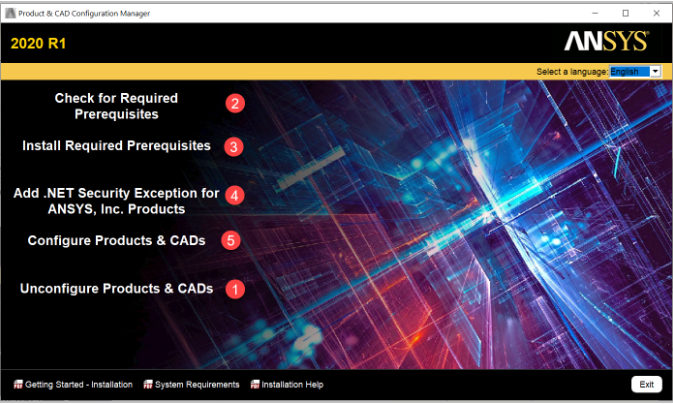
Check If a Product Is Configured (Advanced Users)
To quickly check whether a product is configured, click Unconfigure Products & CADs. This does not tell you whether the product was configured properly.
- If the boxes are unchecked and you can click them, the product was configured before.
- If the boxes are unchecked and you cannot click them, the product is not configured or is not installed.
Verify It Worked
- Open the Ansys software that had the issue, and check that it opens and the missing components work.
- If the issue continues, see HOW TO - Fix Ansys Installation / Functionality Issues.

